Introduction
Mobile accessibility means making native apps, mobile websites, and hybrid experiences perceivable, operable, understandable, and robust for people with disabilities. On mobile, that also means accounting for small screens, touch gestures, orientation changes, screen readers, text scaling, and alternative input methods.
Many product teams struggle here. A layout that works fine on a laptop can break down when a user zooms to 200% on a 6-inch screen, or when VoiceOver reads a custom icon button as "button, button" with no context.
This guide walks product, design, development, and QA teams through WCAG foundations for mobile, mobile-specific requirements, a practical testing checklist, and an implementation process built for B2B software.
Key Takeaways
- WCAG covers mobile, but web success criteria need translation into native platform behavior.
- Automated scans catch some issues; real-device testing with screen readers and switches catches the rest.
- Prioritize touch targets, accessible names, focus order, contrast, text resizing, forms, and gesture alternatives.
- Treat accessibility as ongoing product quality work, not a pre-launch checkbox.
WCAG Foundations for Mobile Accessibility
The Web Content Accessibility Guidelines (WCAG) are the W3C's international standard for accessible content, built around four principles known as POUR: perceivable, operable, understandable, and robust.
On mobile, those principles look like this:
| Principle | Mobile Example |
|---|---|
| Perceivable | Image alternatives read aloud by VoiceOver or TalkBack |
| Operable | Buttons work with a tap, a switch, or an external keyboard |
| Understandable | Error messages explain what went wrong and how to fix it |
| Robust | The app works correctly with current assistive technology |
Both WCAG 2.1 (2018) and WCAG 2.2 (2023) remain active W3C standards. WCAG 2.2 doesn't replace 2.1, so name the specific version your team is targeting rather than saying "WCAG compliant" in general terms.
Conformance Levels and Legal Context
WCAG defines three conformance levels:
- Level A – meets baseline success criteria
- Level AA – meets A plus a stronger set of criteria (the common target for most organizations)
- Level AAA – the most stringent level, rarely required in full
WCAG itself is a technical guideline, not a law. In the US, legal obligations vary by context. The Department of Justice's 2024 ADA Title II rule requires state and local government web content and mobile apps to meet WCAG 2.1 Level AA, with phased compliance dates depending on jurisdiction size.
Private-sector Title III obligations work differently. DOJ enforces general nondiscrimination duties for public accommodations online without prescribing one detailed technical standard. Businesses should assess their own contracts, industry, and legal counsel rather than assume a single rule applies.
Federal agencies fall under a separate framework. Section 508 incorporates WCAG 2.0 A/AA, with additional provisions for non-web software.
Beyond these legal frameworks, platform guidance from Apple and Google fills the gaps WCAG leaves open. VoiceOver, TalkBack, Switch Control, and Android accessibility services all have their own interaction patterns that WCAG doesn't fully describe on its own. Teams that only check WCAG boxes without testing on real devices tend to miss real usability problems.

Mobile-Specific WCAG Considerations
Accessibility implementation looks different depending on what you're building.
- Mobile websites rely on semantic HTML, ARIA, and responsive layout.
- Native apps use platform accessibility APIs (UIAccessibility on iOS, Android's accessibility services) instead of HTML semantics.
- Hybrid apps need both approaches tested together, since a web view embedded in a native shell can behave differently than either surface alone.
Interaction: Touch, Gestures, and Focus
Mobile interaction has requirements that don't map cleanly from desktop:
- Touch targets need adequate size and spacing so users don't mis-tap adjacent controls.
- Accessibility traversal order should match the visual reading order.
- Any drag, swipe, or multi-finger gesture needs a simpler alternative, such as a button.
- Tasks shouldn't require shaking, tilting, or other device motion as the only way to complete them.
On target size specifically: WCAG 2.2 Success Criterion 2.5.8 (Target Size Minimum), a Level AA criterion, requires pointer targets to be at least 24 by 24 CSS pixels, with five defined exceptions covering spacing, equivalent controls, inline targets, user-agent-controlled sizing, and essential presentation. Read the WCAG Understanding document for the normative language and exceptions.
That WCAG measurement is not the same as platform guidance:
- Apple HIG: 44 by 44 points by default (28 by 28 points minimum)
- Android: at least 48 by 48 density-independent pixels
- Units: CSS pixels, points, and dp are not interchangeable
Many teams adopt the platform's larger recommendation anyway, since it is more forgiving for users with motor impairments.
Visual Layout and Input Feedback
Beyond touch, mobile accessibility covers:
- Contrast that holds up in both light and dark mode
- Text that reflows properly when users increase font size or zoom
- Layouts that work in portrait and landscape without clipping content behind notches or system bars
- Form fields with real programmatic labels and the correct virtual keyboard type (numeric, email, and so on)
- Error messages that identify the specific field and explain how to fix it
- Screen reader announcements for dynamic content changes, like a loading spinner finishing or a cart updating
Treat these as release-blocking checks alongside the touch and gesture rules above — layout and feedback failures show up quickly in real device testing with assistive tech turned on.
Practical WCAG Mobile Accessibility Checklist
A checklist only works when someone owns each item. Use this role-based version to assign checks before release.
| Area | What to Check | Owner |
|---|---|---|
| Screen readers | Buttons, icons, images, and fields announce correctly in VoiceOver/TalkBack | Design + Dev |
| Focus & input | Touch target size, visible focus, switch access, external keyboard | Dev + QA |
| Visual presentation | Contrast, no color-only meaning, text resize/zoom, orientation, dark mode | Design |
| Forms & errors | Programmatic labels, visible instructions, field-level error messages | Dev + Content |
| Dynamic content | Status updates announced without unexpected focus moves | Dev + QA |
| Media & navigation | Captions, accessible media controls, no focus traps in modals/carousels | Dev + QA |
| Authentication | Accessible alternatives to CAPTCHA or heavy cognitive login steps | Dev |
Map every row to evidence. Tie each check to a WCAG success criterion or documented platform behavior so you can explain fixes and defend release decisions:
- Record the criterion ID or platform rule next to the owner
- Reject “feels accessible” sign-off without that reference
How to Test and Audit Mobile Accessibility
Start With Scope, Not Tools
Before opening any testing tool, define:
- Which operating systems, app versions, and mobile browsers are in scope
- Which user journeys are critical (onboarding, checkout, search)
- Which assistive technologies matter for your user base
- What changed since the last release
Automated Testing Has Limits
Automated scanners catch missing labels, contrast failures, invalid semantics, and some target-size issues. They're useful early in development.
But WAI's own guidance on selecting evaluation tools is clear: automated tools still need human judgment and can't establish full accessibility on their own. No scan can tell you whether a screen reader user can actually complete checkout.
Manual Testing on Real Devices
This is where most real issues surface. Manual testing should include:
- VoiceOver on a physical iOS device (it's not available in Simulator)
- TalkBack on Android, both linear and explore-by-touch navigation
- Switch Control or Android Switch Access for motor-impairment scenarios
- Text scaling, zoom, and orientation changes
- One-handed or imprecise touch interaction
Test full workflows, not isolated screens: onboarding, login, search, form submission, error recovery, and exit paths. A screen might pass in isolation while the overall task still fails.
Where possible, include people with disabilities or a certified accessibility specialist in testing. Lived experience surfaces friction that internal reviewers and automated tools consistently miss.

Documenting Findings
Every finding should include:
- Affected task and environment
- Steps to reproduce
- Expected versus actual behavior
- Relevant WCAG criterion
- Severity and an owner for remediation
At Yes Yes Know, flat-fee accessibility audits pair automated tooling with manual screen-reader testing on real devices (VoiceOver and TalkBack), then map each issue to the WCAG 2.2 criterion it violates. Findings are rated critical, serious, moderate, or minor.
Founder Jen Bullard (CPACC through IAAP) and Accessibility Lead Katriel Paige (Certified APX Practitioner and WAS) lead this work with usability testing that includes people who use assistive technologies. We don't treat the output as legal certification. It's evidence-based testing that helps B2B software teams find and fix real barriers.
Implementation and Maintenance Across the Product Lifecycle
Accessibility works best woven into every phase, not bolted on before launch.
Team responsibilities typically include:
- Designers establish accessible patterns, states, and annotations
- Developers implement semantic markup and platform accessibility APIs
- Content teams write clear labels, instructions, and error text
- QA maintains regression coverage for accessibility fixes
- Product leaders prioritize remediation against other roadmap work
Use an accessibility backlog with a release gate: rank issues by how many tasks they block, how many users they affect, and whether a workaround exists. Critical issues that block a core workflow, like an unusable primary action on a key form, shouldn't ship regardless of deadline pressure.
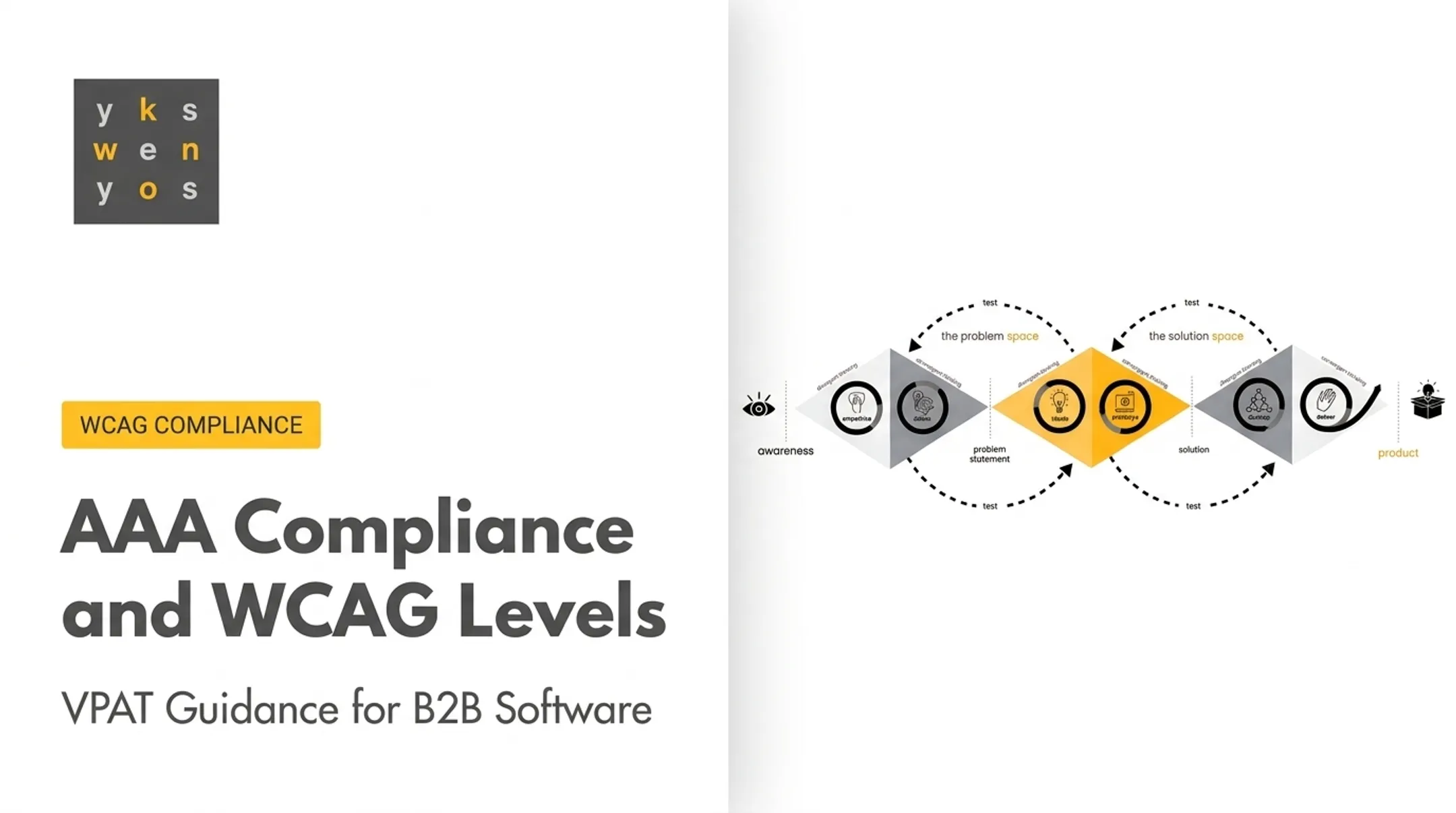
At Yes Yes Know, our end-to-end process runs through three iterative phases (Understanding, Designing, and Building), with accessibility considered in each one rather than saved for a final review. That approach catches problems while they're still cheap to fix.

If your organization produces an accessibility statement, VPAT, or procurement documentation, it should reflect actual testing evidence, not assumptions. Review these documents with qualified legal or accessibility professionals, especially when they'll be used in government or enterprise procurement.
Frequently Asked Questions
What are the key WCAG guidelines for mobile accessibility?
Core mobile work maps to the POUR principles: accessible names, contrast, touch and keyboard or switch access, text resizing, orientation support, gesture alternatives, and clear forms and errors. These requirements must work with screen readers like VoiceOver and TalkBack.
What is the minimum touch target size recommended by WCAG for mobile?
WCAG 2.2's Level AA criterion 2.5.8 requires pointer targets of at least 24 by 24 CSS pixels, with five specific exceptions. Many teams use Apple's or Android's larger platform recommendations anyway for better usability.
How can I test a mobile app for WCAG compliance?
Combine automated scanning with manual testing using VoiceOver and TalkBack on real devices, plus keyboard, switch, and gesture testing. Test complete workflows, not single screens, and include people with disabilities when possible.
Does WCAG apply to native mobile apps?
Yes. WCAG was written for web content, but W3C's mobile guidance maps the success criteria to native apps. You still need platform accessibility APIs and OS guidance from Apple and Google.
What is the difference between automated and manual mobile accessibility testing?
Automated tools catch missing labels, contrast issues, and some semantic errors quickly. Manual testing evaluates actual interaction: screen reader announcements, focus order, gesture alternatives, and whether a real task can be completed.
Is WCAG compliance the same as ADA compliance?
No. WCAG is a technical standard; the ADA is a US law with obligations that vary by organization type, contract, and jurisdiction. Assess your specific legal requirements separately from your WCAG conformance target.